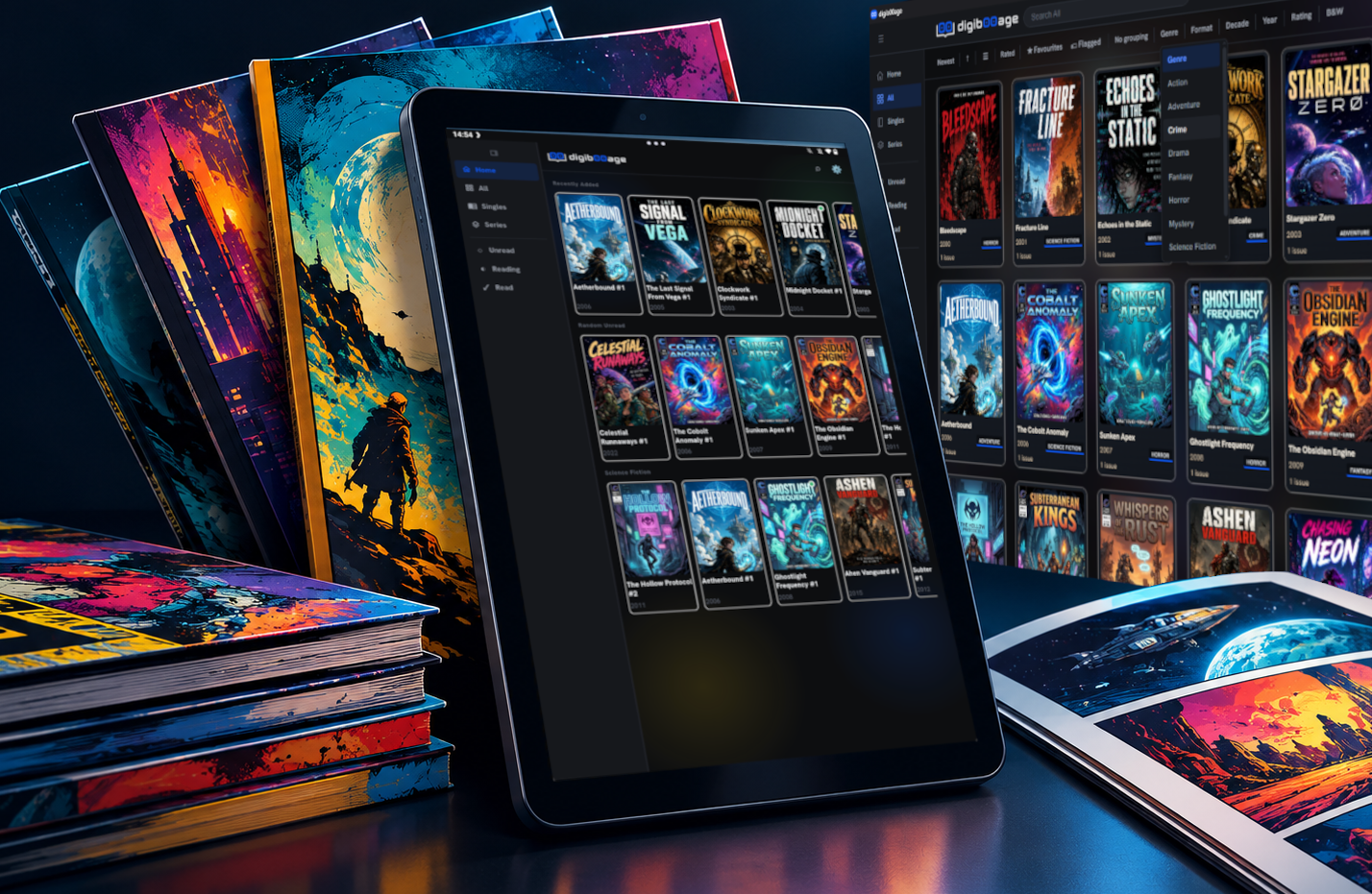
digib00age is the all-in-one, self-hosted solution for processing, organising and reading your digital comic book and graphic novel collection — on your own hardware.
Built-in tools for searching ComicVine via ComicTagger, full and quick XML editing, file and image conversion, and auto-scheduling of tasks.
Free
Reader
Open source
Self-hosted
digib00age gives you complete control over your collection with tools and customisation.
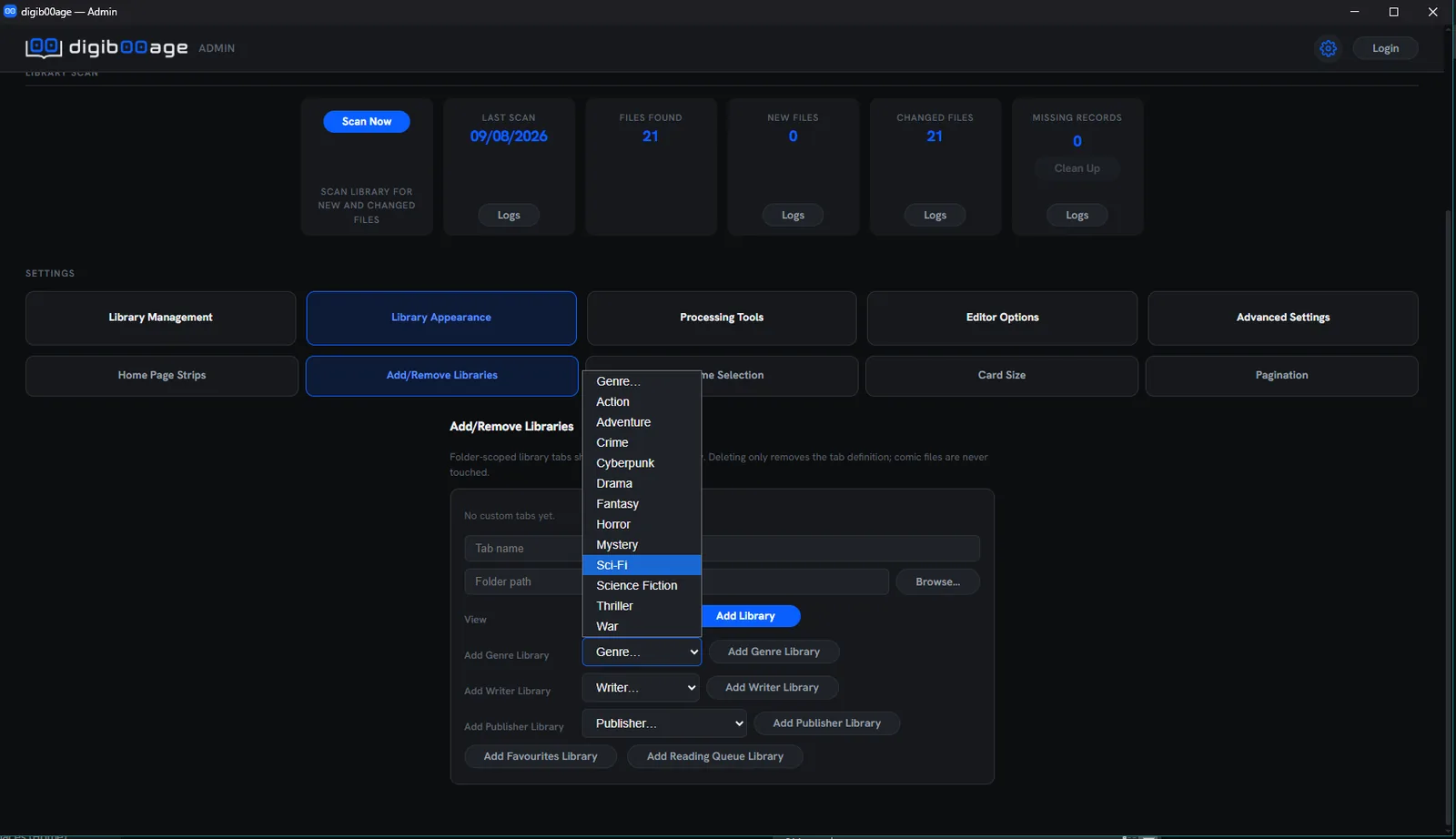
Custom Libraries
Create multiple libraries from folders or metadata properties such as Genre or Publisher. Add favourites and a reading queue.
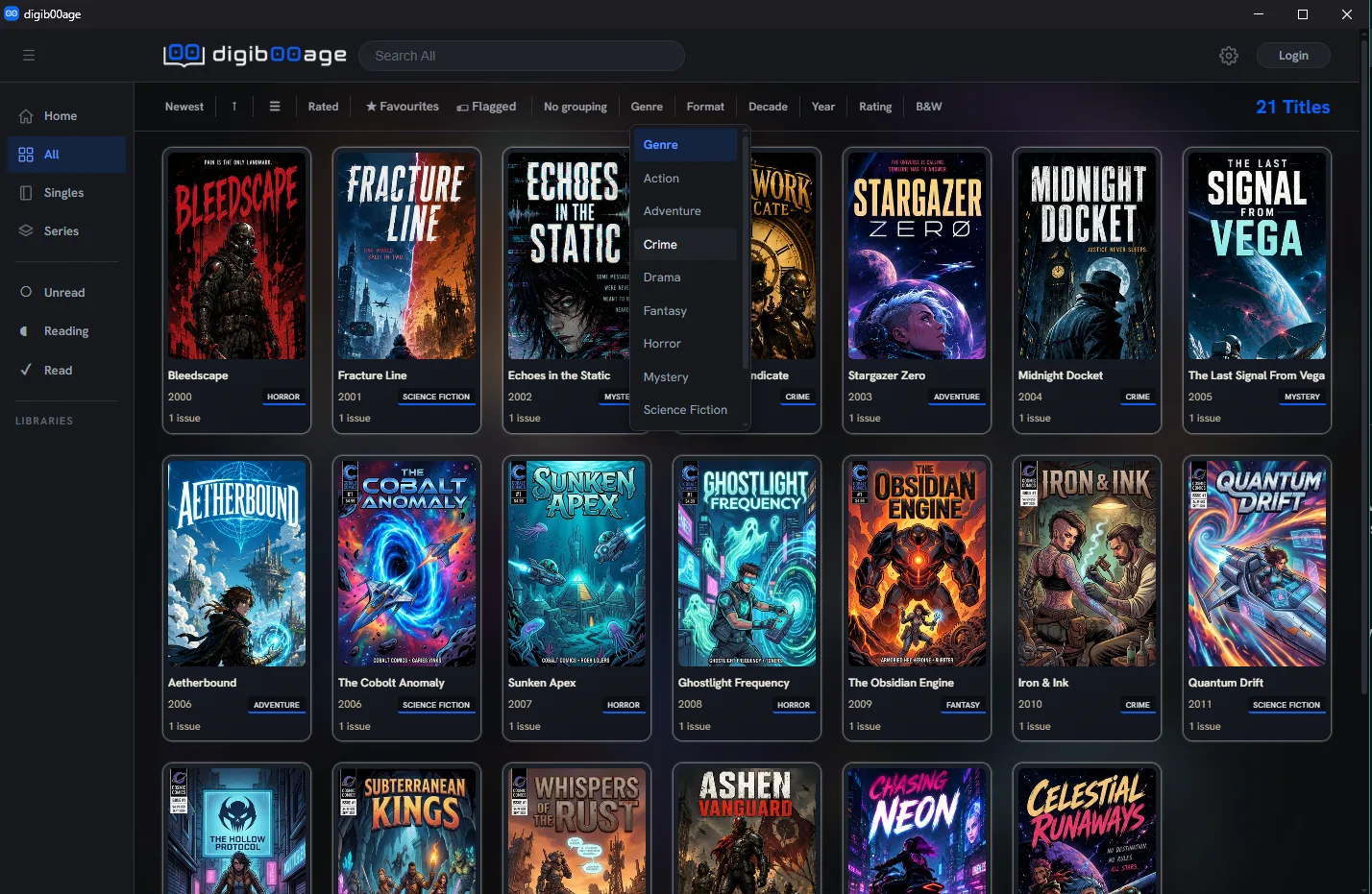
Filter & Sort
Filter by genre, format, rating, year or any field captured from ComicInfo.xml when the library is scanned.
Metadata Tagging
Built around ComicInfo.xml. Find and edit it using ComicTagger connected to ComicVine — one issue or a whole series.
Processing Tools
Rename, convert archives & images, and run processing manually or automatically after auto-tagging.
digib00age scans a folder of CBZ/CBR files and turns it into a library you can browse, filter, read and maintain — all from one self-hosted server.
Library & organisation
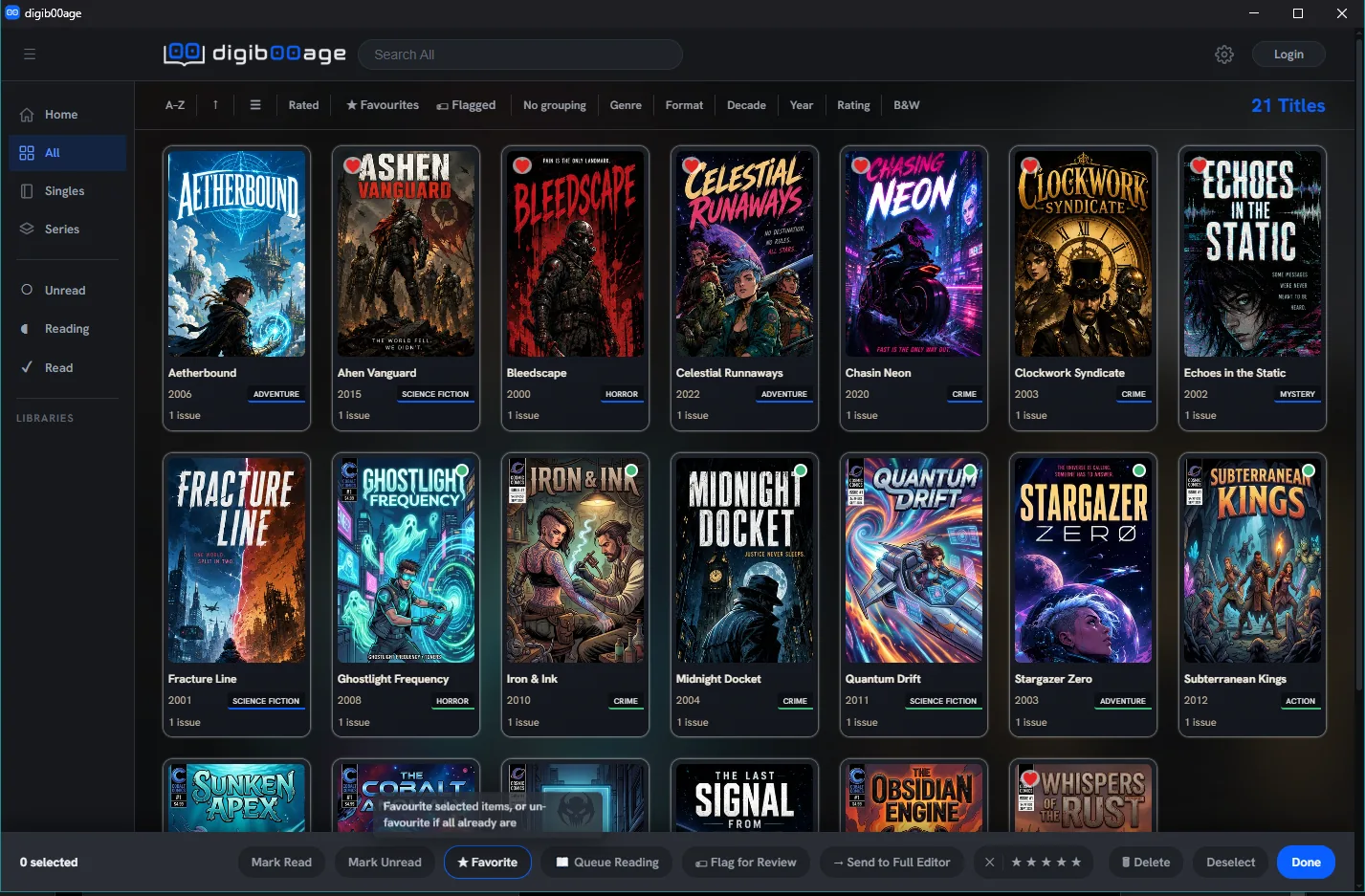
digib00age scans your CBZ/CBR files (any folder depth), reading embedded ComicInfo.xml metadata automatically. Rescans are incremental — your reading progress and ratings are never wiped, and missing files are flagged rather than deleted.
- Browse by Home, Series, Singles or All
- Admin-defined Custom Tabs — scoped to a folder, or library-wide by favourites, genre, publisher, writer or reading queue
- Folder View for a straight drilldown of your actual directory structure
- Configurable Home Page strips: Continue Reading, Recently Added, Random Unread, Random Genre, plus up to five of your own
Find anything
The same unified filter, sort and search bar works across every browsing surface, in both flat and folder view.
- Filter by genre, publisher, format, decade, year, rating and black-&-white
- Favourites and flagged-for-review toggles
- Sort by any field, switch between grid and list view
- Live search as you type
Metadata you control
Every issue can carry series, title, year, publisher, format, summary, story arc, writer/artist and other credits, characters, teams, locations, genres, age rating, language, and page count. Pull it from ComicVine or edit it by hand, one issue or batch processing a series.
See the metadata editor →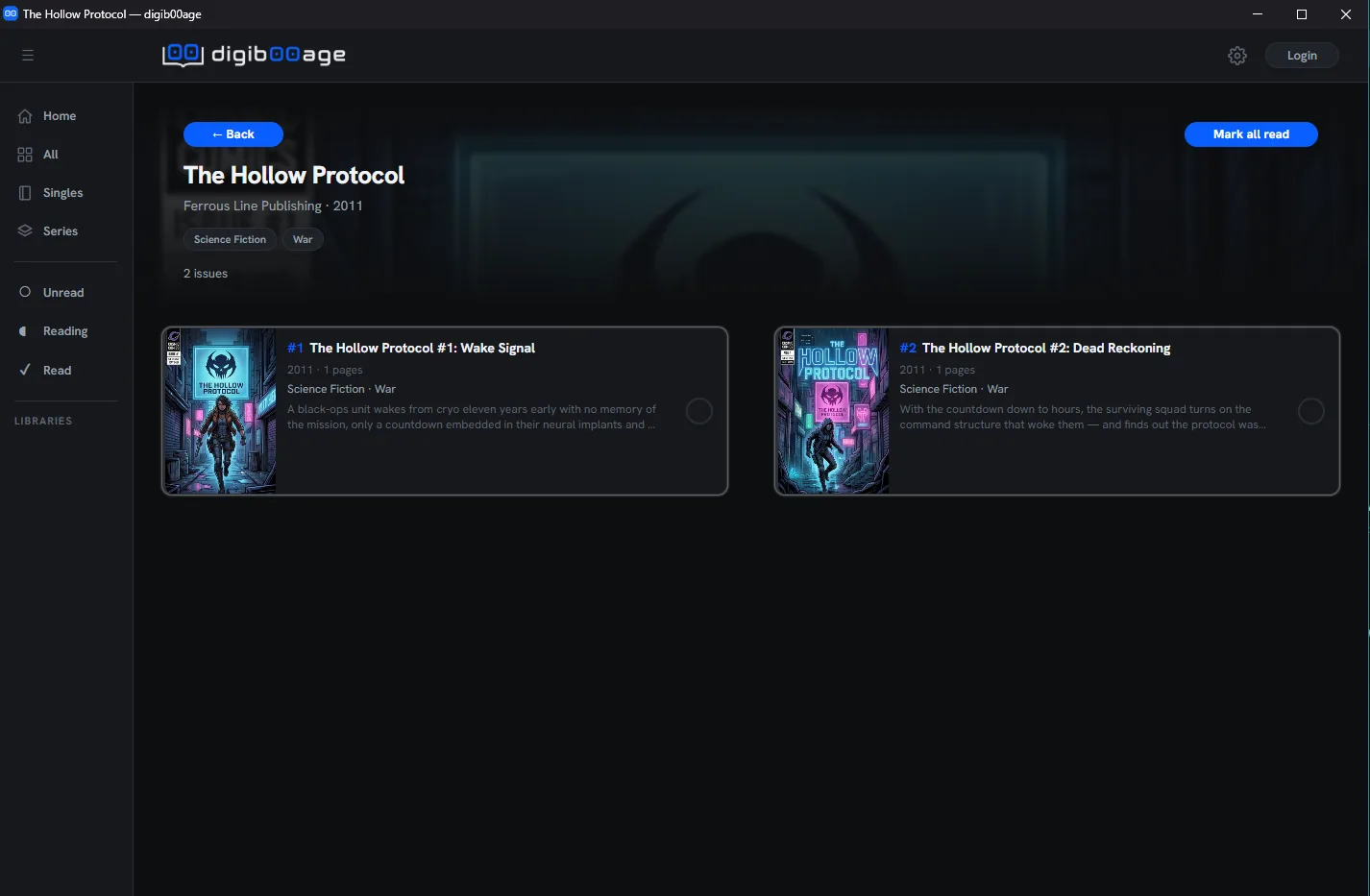
Pick up where you left off
Track read, unread and in-progress status automatically, rate issues 1–5 stars, mark favourites, and flag anything that needs a second look. A Reading Queue keeps a running list of what's next.
- Built-in browser reader with scroll and page navigation modes
- Resumes exactly where you stopped, on any device
- Bulk actions — mark whole runs read, batch-select across a series
Admin & control
One admin panel covers everything the server needs, on-demand or on a schedule.
Scan management
On-demand or scheduled scans with live progress and cancel, across multiple library roots with folder excludes.
Backups
Scheduled and on-demand database backup and restore, plus a one-click reset if you ever need a clean slate.
Access control
Optional local password protection with brute-force lockout — your library, gated the way you want it.
Two ways to work: a Basic Editor for quick single-issue fixes, and a Full Editor plus a whole Processing Tools panel for bringing a folder of new comics up to standard in bulk.
Full Editor
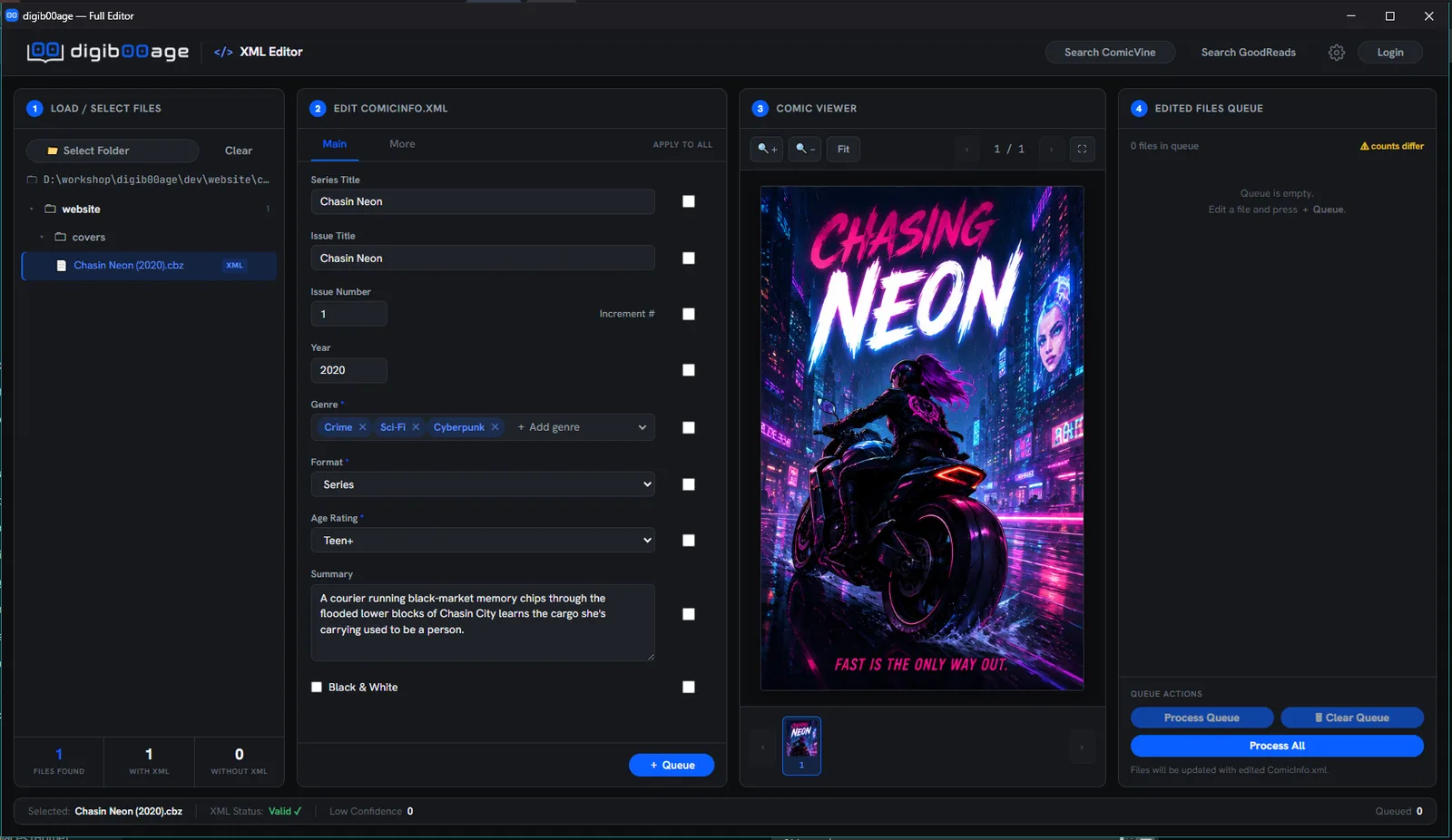
The Full Editor is a dedicated workspace for tagging comics before they enter your library: load a folder, edit the ComicInfo.xml form, check the page image against the cover, and queue the result — all in one screen.
- Folder/file picker with a tree view of everything loaded
- Main and More tabs cover every ComicInfo.xml field
- Genre, Format and Age Rating are enforced dropdowns, not free text — a data-hygiene report flags existing mismatches
- Sequential auto-increment issue numbering and per-field "Apply to All" batch overwrite
ComicVine search
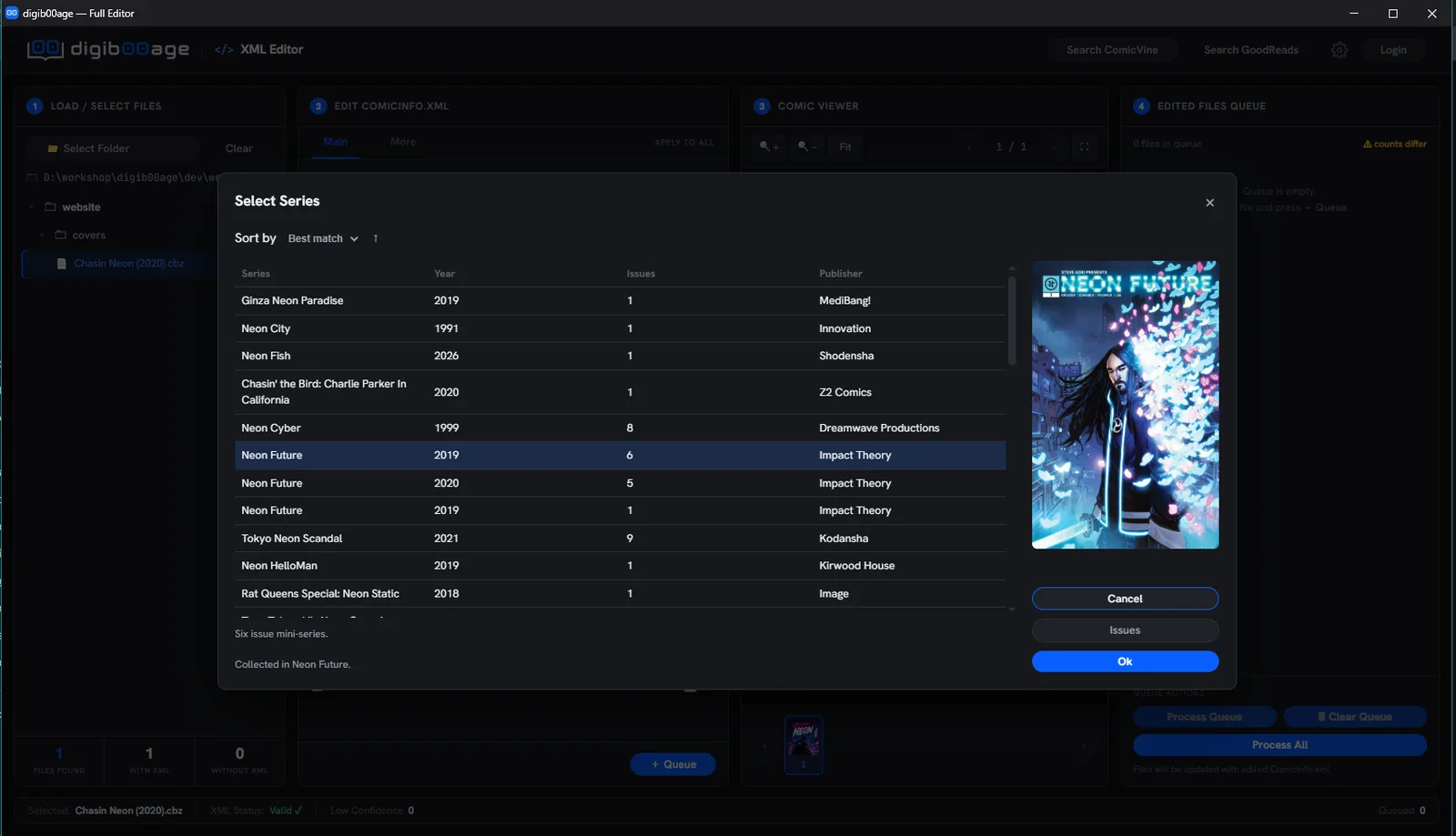
Search ComicVine by series (with optional issue number, year or count), pick the right series and issue from a modal showing cover art and descriptions, and apply the full match to the form in one click. A GoodReads quick-link sits alongside it for a second reference source.
Basic Editor
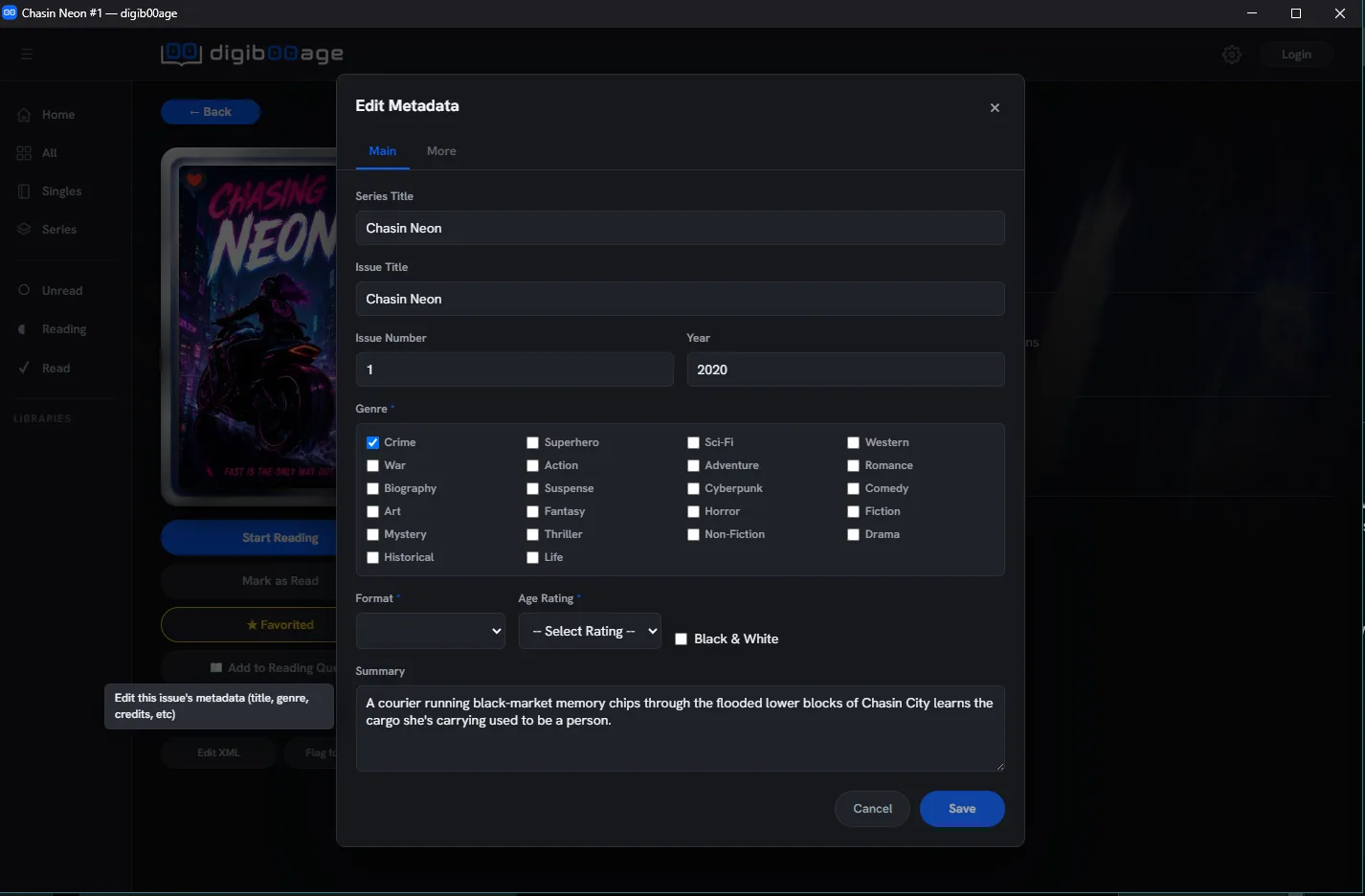
For a comic that's already catalogued and just needs a small correction, the Basic Editor pops up right from the library view — no need to open the full workspace.
Run each tool on its own, or let the pipeline do it in sequence. Every tool has an in-app folder browser reachable from any device, admin-auth gating, background progress, and an audit log.
File Rename
Batch or single filename renaming from parsed or manually-edited Series/Issue/Title/Year, with auto-increment, case styling, a live preview queue and an audit log.
Convert Archives
CBR→CBZ and PDF→CBZ conversion, with content-based format detection and an automatic backup-and-validate safety model.
Convert Images
Converts page images (jpg/png/gif/tiff/bmp) to WebP — lossless or quality-slider — and repacks the archive.
XML Tagging / CT Auto-Tag
Automated ComicTagger + ComicVine metadata matching against a folder of files, with a configurable match-confidence threshold.
Processing Folder Automation
A fixed pipeline — Convert Archives, then CT Auto-Tag, then Convert Images — run against one staging folder, on a schedule or on demand.
Sort by Filename
Auto-organises loose CBZ/CBR files into per-title subfolders based on the parsed filename.
Worth knowing: CBR (RAR) archives are read-only throughout digib00age — writing a real RAR requires paid WinRAR tooling, so any edit to a CBR repacks it as a CBZ instead.
Your library, at home and on the go
The digib00age Android app connects to your server over your own network, syncs your reading progress, and lets you download issues for reading offline.
- Reading progress sync between server and device, with a visible "last synced" indicator
- Download issues for offline reading, no connection needed
- Scroll or tap to turn reading modes
- Light and dark themes, built for tablets
The app isn't on Google Play yet — it installs as a direct APK today, with a Play Store closed testing track planned. Ask about testing →
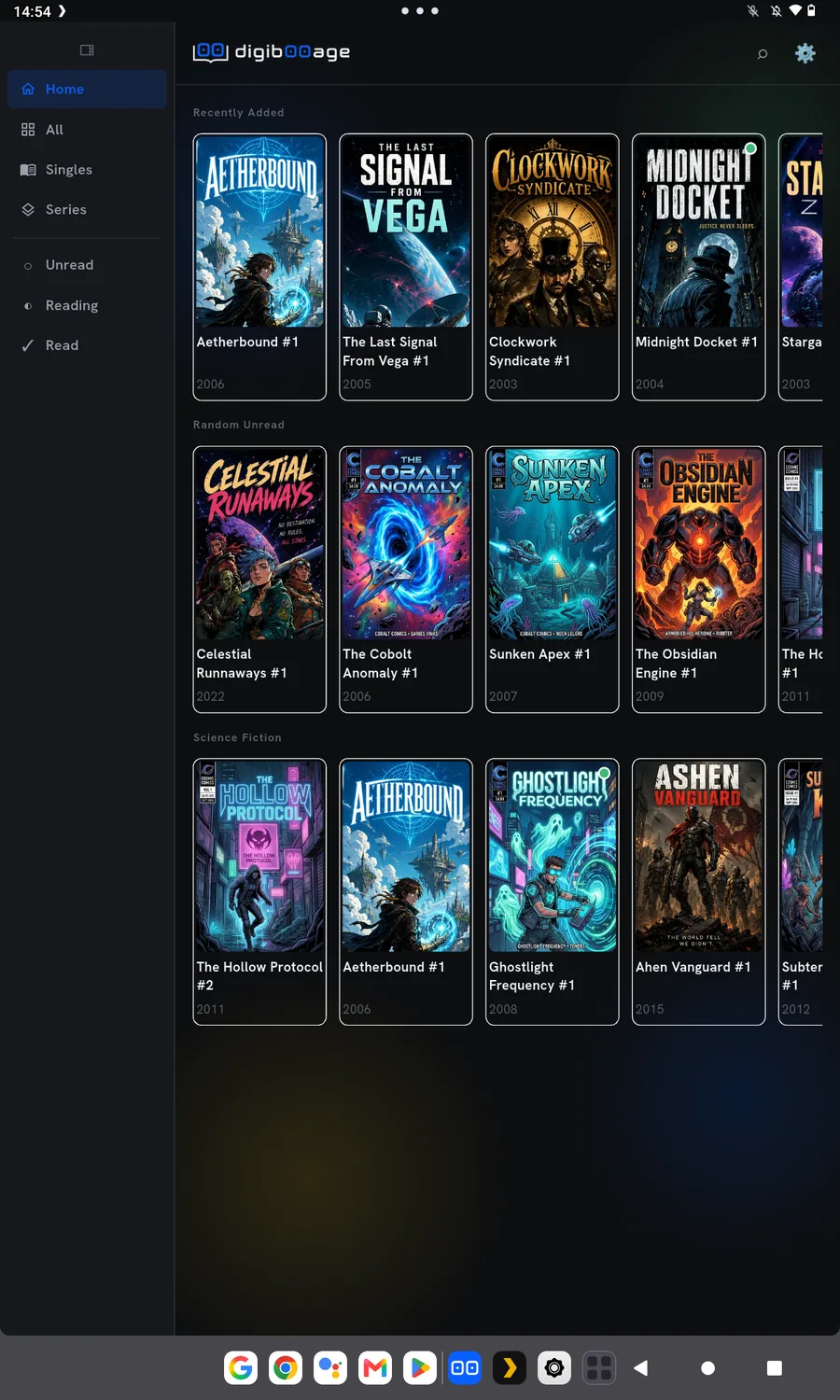
Pick your platform below. digib00age is self-hosted software — you run it on your own hardware, there's nothing to sign up for.
Windows
digib00age ships as a per-user MSI installer — no administrator rights needed, and the server runs quietly from the system tray.
- Download
digib00age-setup.msiand run it. - Windows SmartScreen may warn that the installer isn't signed yet — choose "More info" → "Run anyway" to continue.
- Once installed, digib00age starts from the tray and opens your library in the browser automatically.
Code signing policy: digib00age intends to sign Windows releases through SignPath Foundation's free Open Source program once accepted — free code signing provided by SignPath.io, certificate by SignPath Foundation. digib00age has a single maintainer, who holds every signing role (Author, Reviewer, Approver). See our privacy policy — the digib00age software itself transfers no data anywhere except to the self-hosted server address you configure yourself.
Linux
Download and unzip the Linux install package below, then run ./digib00age/install.sh — it creates a venv, installs the app into it, and sets up a menu launcher.
Docker
Runs on any OS that has Docker installed — the commands below are the same on Linux, Windows, or macOS.
- Pull the image:
docker pull ghcr.io/quixline/digib00age:v1-beta - Download the compose file below and run
docker compose up -d.
Android
The Android reader isn't in the Play Store yet, so it installs as a direct APK.
- Download the digib00age APK below to your device.
- Open it from your Downloads or file manager — Android will prompt to allow installs from that source.
- Go to Settings → Apps → Special app access → Install unknown apps, select the app you used to open the file, and enable Allow from this source.
- Return to the download, tap Install, then open Settings inside the app and point it at your server's address.
Check the in-app guide first
digib00age ships with a full user guide built into your own instance — open /guide on your server (for example http://your-server:9800/guide) for a walkthrough of the library, admin panel, and both editors. A lot of "is this a bug?" questions are answered there.
View the guide online to get a better understanding of the app's before downloading.
View the guide →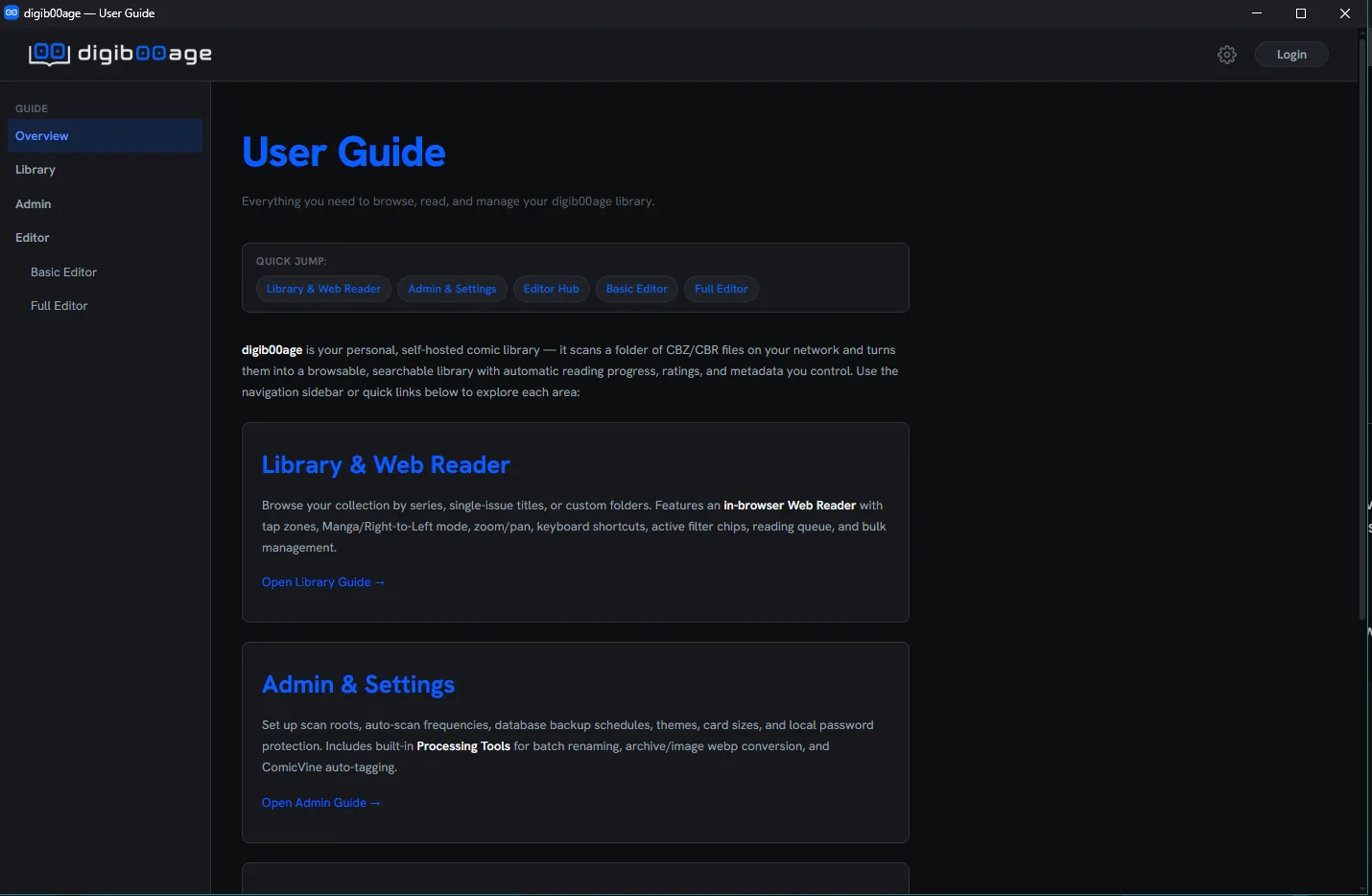
Reporting a bug
File it on GitHub Issues — describe what happened, what you expected instead, and your platform (Windows / Linux / Docker / Android).
Requesting a feature
Same place as bugs — open a GitHub Issue with the idea and what problem it'd solve for you.
digib00age is GPLv3-licensed and the full source is on GitHub. Browse the code, search existing issues, track status, and follow along with fixes.
Send a note about anything that isn't a bug report or a feature idea.